How to Read hipobuy Spreadsheet Product Cards
How to Read hipobuy Spreadsheet Product Cards
How to Read hipobuy Spreadsheet Product Cards: From Category Tags to Candidate Records
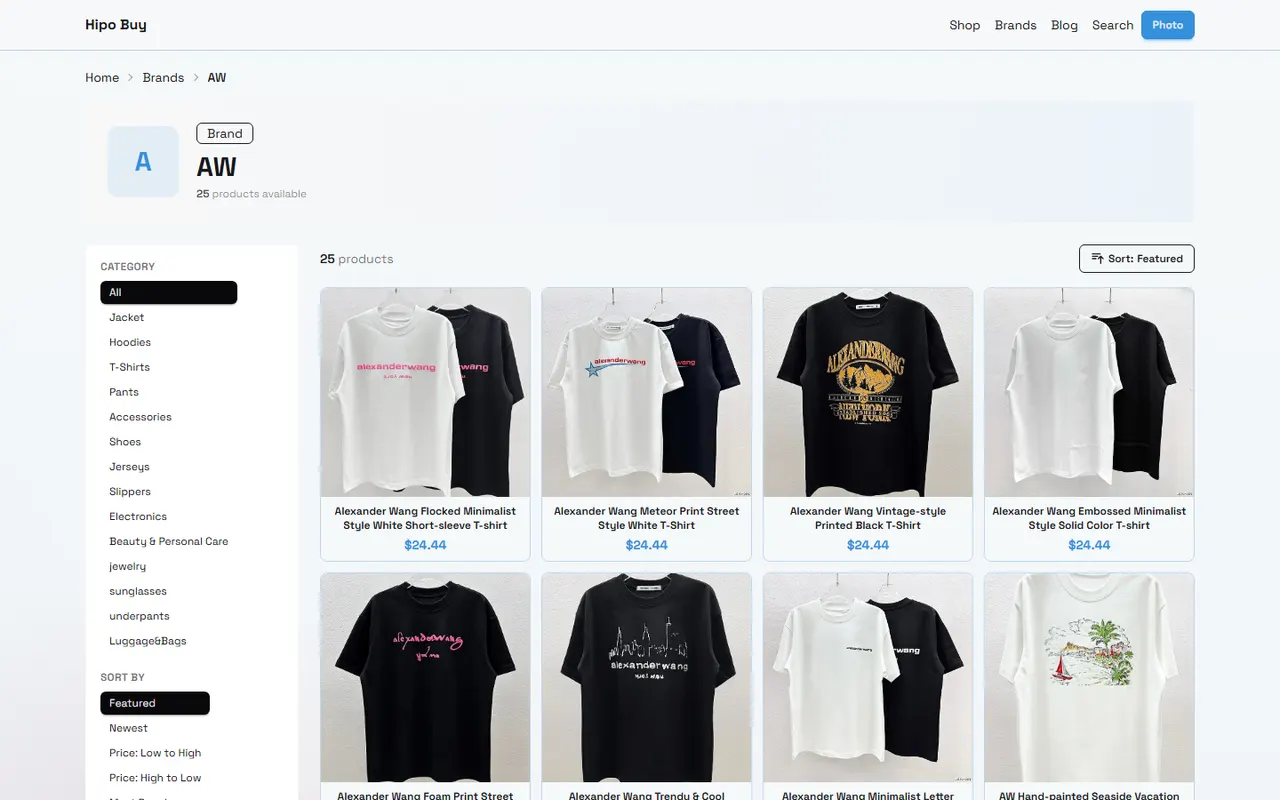
Product cards are suitable for the first round of screening: first determine from the category, title, tags, images, and visible specifications whether a product is worth further review, then open the original product page to verify price, inventory, options, seller, and purchase conditions.
These cards are not order confirmation pages, nor can they replace the product details page. Card information may only be suitable for building a candidate list, and you should still reconfirm the page status before final purchase. 📌
First Clarify What You Want to Confirm from the Product Card
Before reading the cards, write down the specific task for this screening. For example:
Find multiple candidate styles for a certain type of product.
Narrow down by color, size, material, or use.
Prepare at least one backup product for the primary choice.
Record items that need to be checked when opening the original product page later.
The result of reading cards should be a candidate record that can be further verified, not just an impression that "it looks good." After completing the initial screening, you should at least know what category the product belongs to, why it meets your current needs, and what key information is still missing.
If you need to confirm real-time prices, availability, whether different options correspond to different prices, or judge whether the product is suitable for direct ordering, reading cards alone is not enough.
What Information Does a hipobuy Spreadsheet Product Card Usually Contain
The fields on different cards may not be exactly the same, but generally you can start reading from the following types of information:
Information Area | Main Purpose | Conclusions That Cannot Be Directly Drawn |
|---|---|---|
Category and Tags | Judge the general classification and screening direction | Cannot prove that all tags apply to every variant |
Product Title | Identify style, category, or series name | Cannot alone prove material, brand, or actual inventory |
Image Preview | Initially confirm appearance, color, and structure | Cannot replace detail images, measured dimensions, or quality inspection |
Visible Specifications | Record candidate information such as color, size, version | Cannot guarantee that the original product page still offers these options |
Product Source Identifier | Help continue to open the corresponding product record | Cannot infer shipping costs, after-sales service, or final landed price |
When reading, record "what the card shows" and "what you still need to verify" separately. This reduces the risk of misreading summary fields as platform promises.
How Category, Title, and Tags Work Together to Locate a Product
Category is suitable for answering "what general group of products does it belong to," title is suitable for answering "what style might it be," and tags help you further narrow the screening range. The three should be judged together, not by looking at only one field.
For example, if a card is placed in a certain clothing category, the title contains a style word, and the tags include color or use scenario, then it can be added to the candidate list. But this only means it is worth further review, not that every color, size, or version exists.
It is recommended to read in the following order:
First confirm whether the category matches the current purchase task.
Then read the category, style, series, or use information in the title.
Check whether the tags provide color, size, season, scenario, or other screening clues.
Compare with the image to confirm that the title and tags do not obviously conflict.
Mark any remaining uncertain points as "to be verified" rather than filling them in yourself.
When the title is too broad, do not infer product details based solely on tags. Conversely, if the title contains multiple versions or combinations, do not assume that the card image shows everything you will purchase. 🔎
How to Cross-Check Image Preview and Text Specifications
Images and text each provide only partial information. Images are better for observing appearance, structure, pattern placement, and approximate color relationships; text specifications are better for recording model numbers, sizes, or versions explicitly written in the title.
When cross-checking, you can examine the following questions:
Is the product in the image consistent with the category.
Does the image show a single item, or might it include multiple accessories or combined items.
Could the image color be affected by shooting, compression, or screen display.
Can the style, version, or quantity in the title be found as corresponding clues in the image.
Is the image just a display image, and the actual selectable colors and specifications still need to be confirmed on the original product page.
Do not write image observations as conclusions about material, thickness, feel, or workmanship. Unless the original product page provides clear specifications or verifiable measurement information, it is safer to write "image shows" or "card annotates" and list material, dimensions, and details as items to be checked.
If the image and title are obviously inconsistent, pause the comparison and mark this record as "needs to open the original page for confirmation." Do not ignore conflicts just to make the candidate list look complete. 🧭
Organize Candidate Products into Comparable Records
The value of product cards lies in helping you build trackable candidate records. For each product, at least record the following:
Product title or card name.
Category.
Key tags.
Main appearance features shown in the image.
Reason for currently selecting it.
Items that need to be confirmed by opening the original product page.
Status: primary, backup, or not adopted for now.
Date of last verification.
You can use a simple three-tier judgment:
Primary: Currently best meets task requirements and no obvious information conflicts found.
Backup: Meets main needs but needs further comparison in style, specifications, price, or information completeness.
Not adopted for now: Category mismatch, obvious information conflict, or missing key records needed for further verification.
Do not save only one product. When the primary product is out of stock, options do not match, or original page information changes, backup records can reduce repeated searching. For the same type of product, it is best to use the same fields for recording, to avoid comparing one product with complete information and another with only impression descriptions.
What Information Still Needs to Be Confirmed on the Original Product Page
Cards are suitable for initial screening, but the following information usually should be checked back on the original product page:
Current price and currency.
Specific colors, sizes, versions, and their availability.
Current inventory or whether it can be added to cart.
Material, dimensions, weight, and package contents.
Seller information, product description, and image details.
Shipping costs, route restrictions, taxes, or other order-related fees.
Return/exchange conditions, after-sales scope, and applicable restrictions.
Whether the product page is still accessible normally.
If these fields affect the purchase decision, do not use the summary in the card directly as the final basis. After opening the original product page, update the candidate record item by item and write down the verification date. Platform pages, inventory, prices, and options may change, so "saw it today" does not mean "still valid at the time of ordering."
In the usage scenario of hipo-buy.org, cards are more suitable as an entry point for discovering and organizing candidate products. Before actual purchase, you should still confirm the product, options, fees, and subsequent processes based on the visible information on the page, and do not complete the order based solely on the card title or preview image. ✅
Common Misreadings and Information Gaps
Treating Category as Precise Specification
Category only shows that a product is placed in a certain range; it does not prove that it meets all your size, material, or use requirements. When exact matching is needed, return to the original product page to verify specifications.
Treating Tags as Platform Guarantees
Tags are screening clues, not necessarily covering all variants, and not necessarily indicating that each tag corresponds to a currently purchasable option. When tags conflict with images or titles, keep the doubt.
Treating Images as Proof of Actual Quality
Images can help identify appearance, but cannot prove feel, durability, thickness, color difference, or workmanship. Do not write visual judgments as actual test results.
Treating Card Status as Real-Time Inventory
Product cards may be organized records or summaries. Inventory, prices, and options must be reconfirmed when preparing to order.
Saving Only the Primary Product
Without backup records, you'll need to search again when encountering stockouts or option changes. Keeping one or two backups with different reasons for the primary product usually makes it easier to continue deciding.
Next Step: Build a List of Primary and Backup Product Cards
You can complete a documented screening with the following process:
Write down the purchase problem to be solved this time, such as use, category, or specification requirements.
Browse product cards, first confirm the category, then look at the title, tags, and images.
Delete obviously irrelevant or conflicting records.
Create uniform candidate records for the remaining products.
Select one primary product and at least one backup product.
Open the original product page and verify price, inventory, options, specifications, fees, and after-sales information.
Fill in the verification date in the record and mark items that are still unconfirmed.
Only proceed to the next step of purchase judgment after all key fields meet current needs.
For the question "How do I search for a product I want to buy?", the most practical answer is not just to remember a certain keyword, but to first narrow the range with categories and tags, then cross-check with titles and images, and finally return to the original product page for verification. A list organized this way is easier to compare and less likely to mistake summary information for order facts.
Common Questions on agent Platform Shopping
1. In what way can I locate a product I wish to buy on hipo-buy.org?
A single keyword can be used for searching, or you may head straight to the relevant category page, which also groups items by brand. Extended search phrases often produce fewer hits than brief ones, yet they offer greater accuracy. As an illustration, you could look up "Air Force 1 White," "sneakers," or just "Air Force 1" on hipo-buy.org.
Browse our latest products and find your next favorite item.